LSAAI accounts and groups
This page is written in three parts
- Overview - brief description of LSAAI
- Regular users - instructions for regular users creating an account
- Group managers - instructions for group managers
1. Overview
In short
- Create LSAAI Account: Register for an LSAAI account if you do not already have one.
- Request VO Access: Log in to LSAAI and request to join the designated Virtual Organization.
- Request Group Access: Navigate to the group listing and request access to the relevant groups.
- Finalize: Upload your public SSH key. Access to the cluster will be granted automatically upon key validation.
1.1. What is LSAAI
It is an identity and access management system designed for the European Life Science research community. It enables researchers to use a single digital identity—leveraging their existing institutional or community accounts—to securely access shared data and computing resources.
Users can request and manage their own access credentials.
Group owners and data managers can manage group membership themselves or delegate this responsibility to others.
1.2. Key Functions
It provides following key functions
- User management
- Identity Consolidation: Link multiple login methods (like your university account and ORCID) into one persistent Life Science ID
- Access credentials management: allows users to self-manage their SSH public keys for remote server access
- Virtual Organization (VO) Management
- Provide separated environments for communities and projects, outside of the main LSAAI community
- VO allows full control over managing user access and groups
- Resource Authorization
- Control which groups or individuals have permission to use specific services or datasets across different research infrastructures
2. Regular users
The registration process varies depending on your home organization.
-
For RUG and UMCG Members
University of Groningen (RUG) and UMCG are already members of the LSAAI community.
- Timeline: Account creation takes only a few minutes.
- Process: Select your organization from the list and log in with your institutional credentials.
-
For Other Organizations
If your organization is not yet a member of the LSAAI community
- Approval: You must wait for manual access approval by LSAAI administrators.
- Requirements: Admins may contact you to request additional information.
To request access to the GGCC Virtual Organization (VO), you must first possess a LifeScience AAI (LSAAI) account.
2.1. Create LSAAI Account
Please note that following steps may differ from user to user, as it depends on their previous LSAAI accounts - therfore some users might need to skip some of the steps.
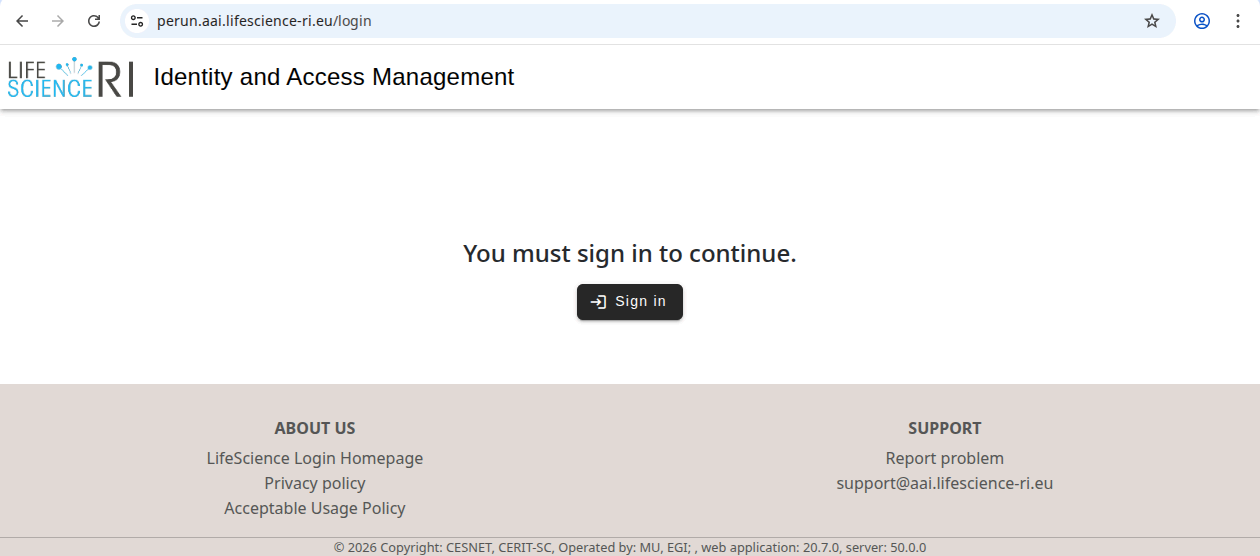
- Visit the Login Portal Navigate to the LifeScience Login page. (image 1)
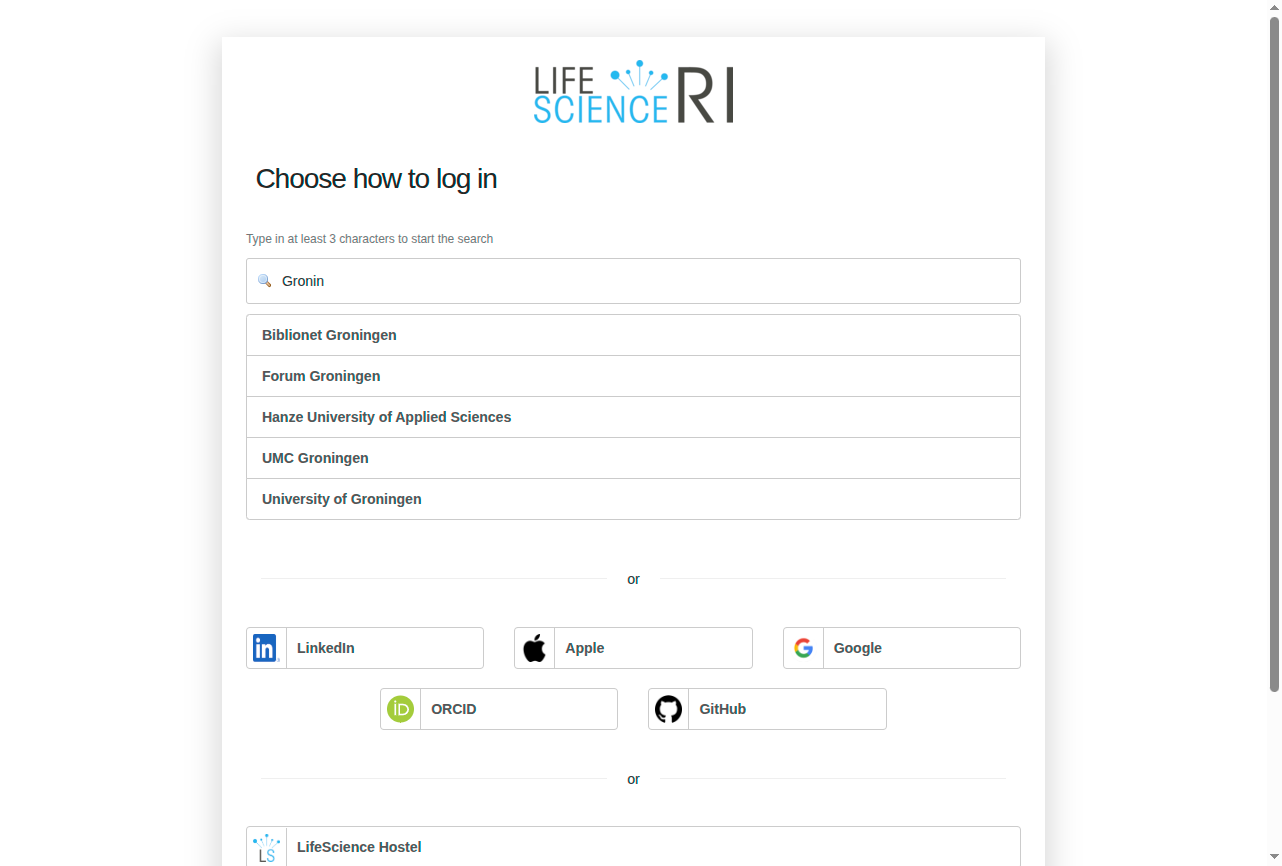
- Select Organization Choose your home institution and log in. (image 2)
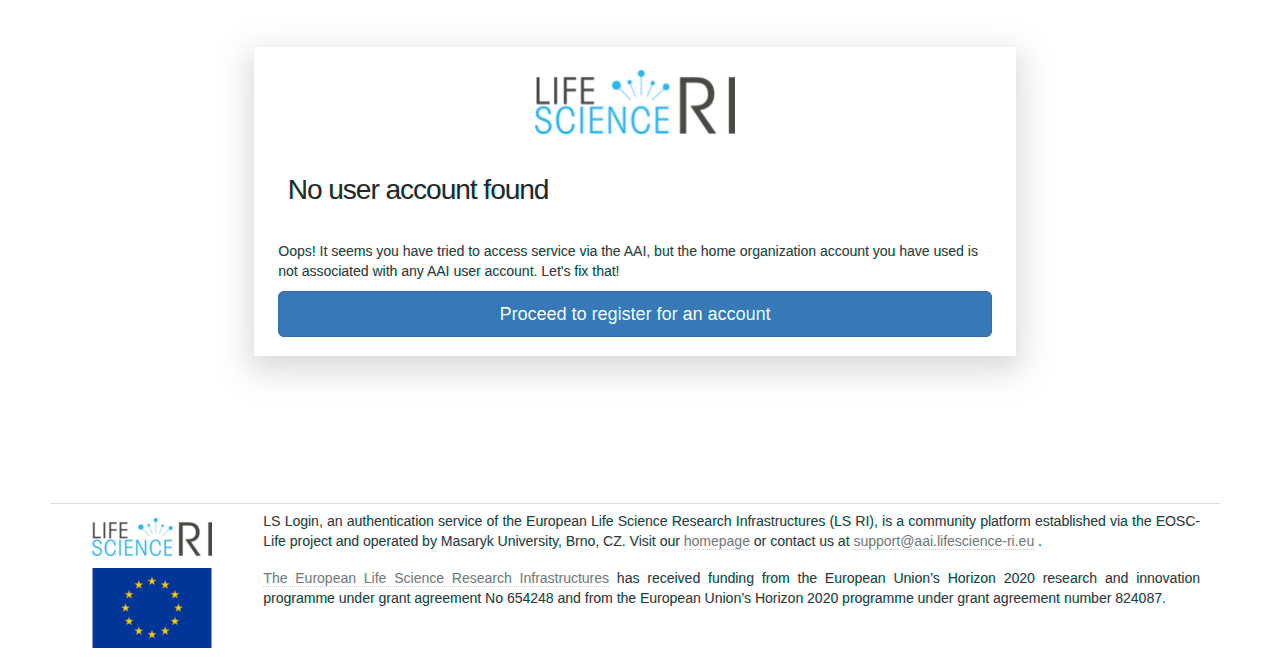
- Register New Account If no account is found, you will see a "No user account found" message. Click Proceed to register for an account. (image 3)
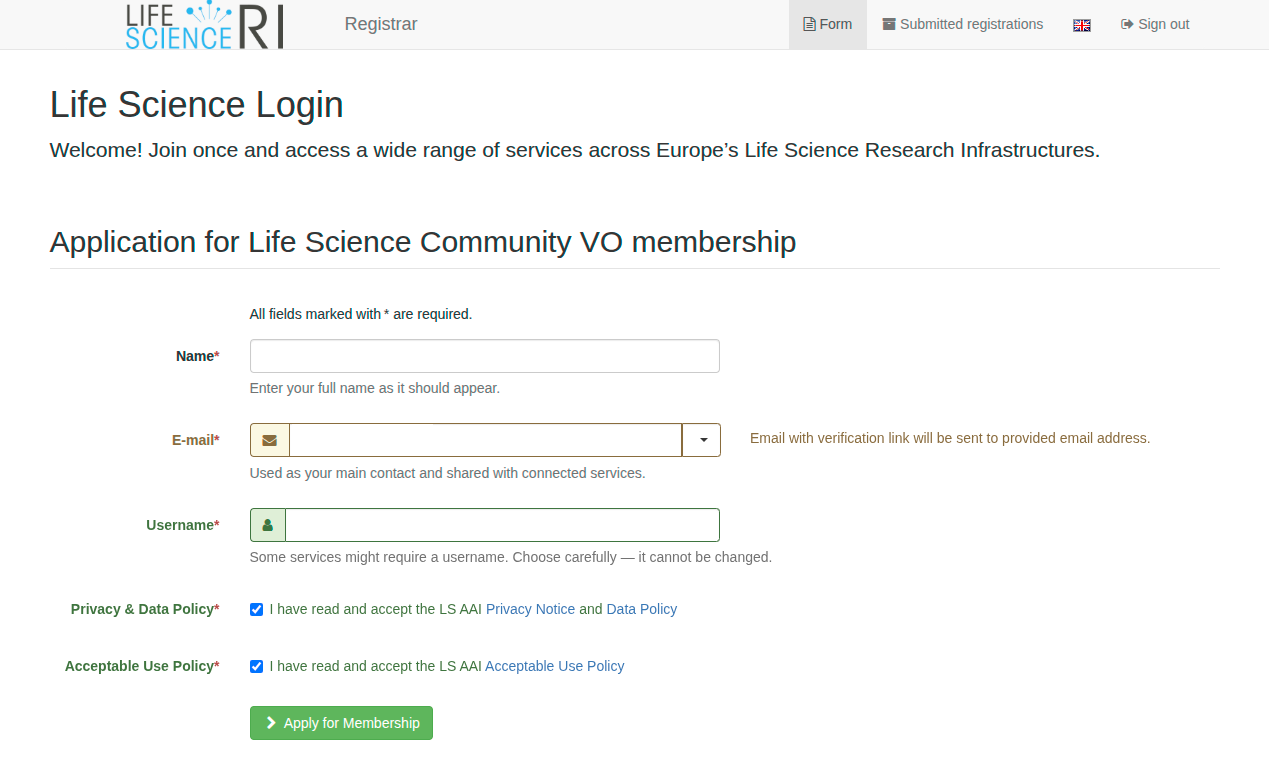
- Fill Application Complete the application form to join the LifeScience LSAAI community. (image 4)
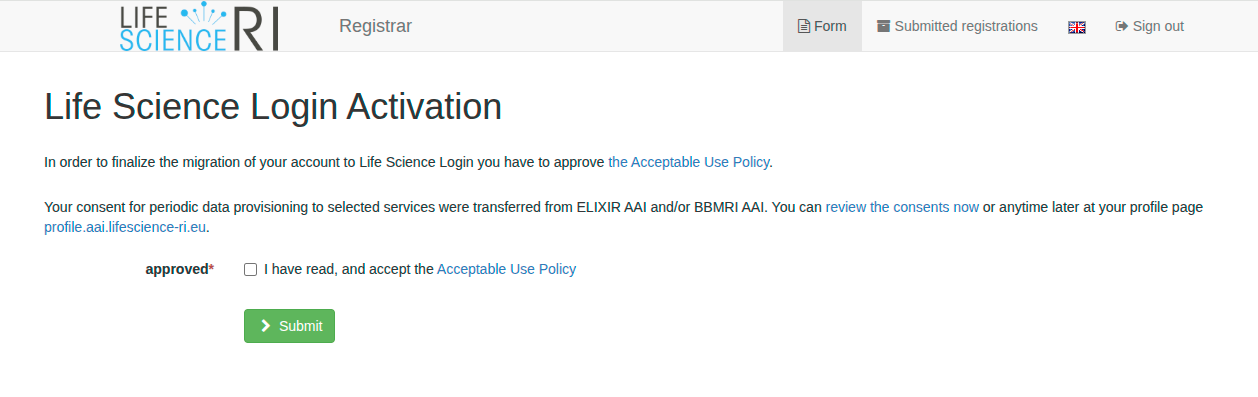
- Accept Policies Accept the Acceptable Use Policy and click Submit. (image 5)
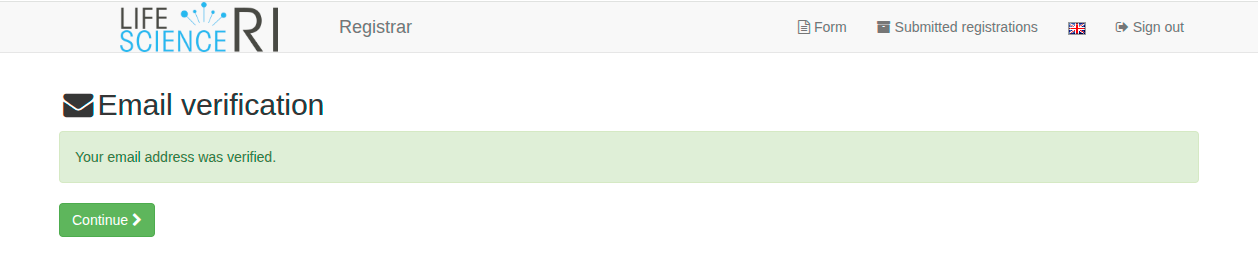
- Verify Email Check your inbox for a verification email and follow the link to activate your account. (image 6)
If your organization is not part of the LifeScience community, you may need to wait for administrative approval before proceeding to the next step.
2.2. Requesting GGCC VO Access
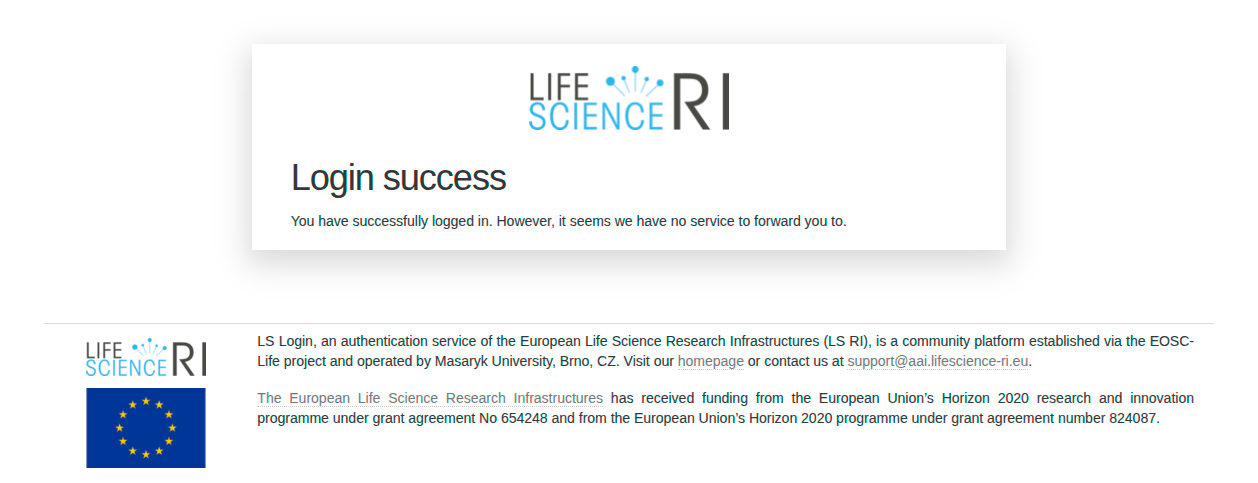
Once your account is created and you log in to LifeScience, you may see a message stating: "Login, but no service available yet" (image 8). You must now join the GGCC Virtual Organization.
Option A: Join the GGCC Virtual Organization
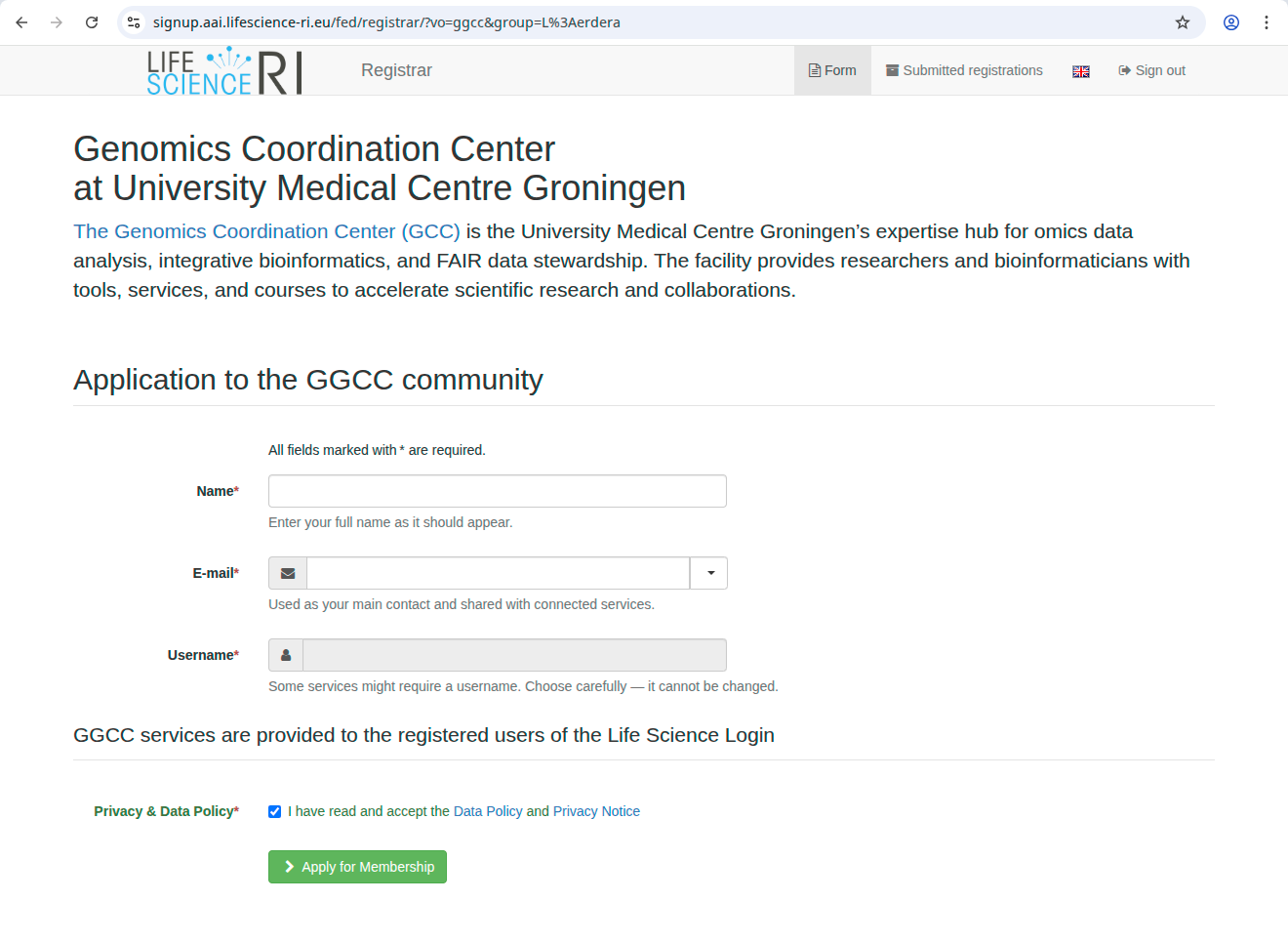
You can request general membership by visiting the registrar
- Link: Request GGCC Membership (image 9)
- Follow the prompts to join the VO and specific groups as needed.
Option B: Join via Invitation Link
If a project lead has provided you with a specific group invitation link
- Clicking the link will automatically generate an access request on your behalf.
- You should see a confirmation: "You have successfully applied for membership."
2.3. Final Approval
In both cases, access to HPC groups is granted only after group administrators approve your request.
- You will receive a notification email once your access has been provisioned.
- You can then proceed to use the GGCC computing resources.
2.4. Adding and managing ssh keys to access clusters
Accessing the clusters requires an SSH public-private key pair (see instructions on how to make for Linux/Mac and Win).
- Upload: Add your public key to your LSAAI profile > Authentication > SSH keys. (image 9)
- Wait: It typically takes a few minutes for the key to propagate to the clusters.
- Connect to the cluster
- remember: your accountname / username is the email address that you are using to login into the LSAAI
- follow the login instructions using this username
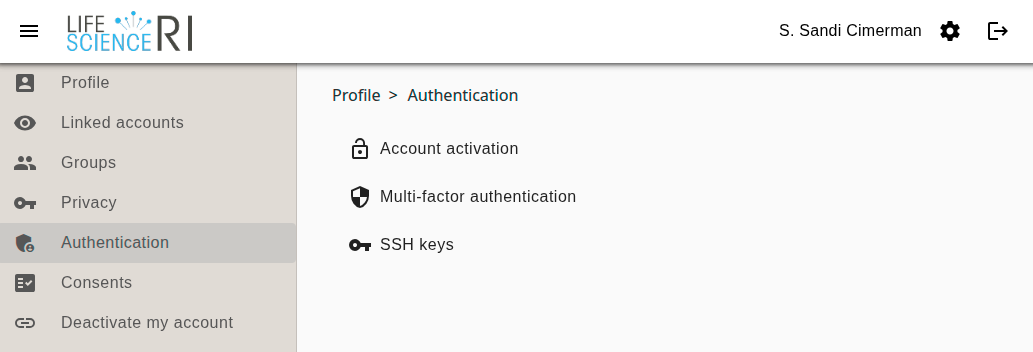
Note: If you lose your key or forget your passphrase, simply generate a new pair and update your profile at the link above.
3. Group managers
3.1. Login
- Login to LSAAI
- Go to GGCC Virtual Organization and browse the
Groups
3.2. Adding users to a group
Option A: Invite Users via Link
- From the group administration page, navigate to
Membersand selectCopy invitation link. (screenshot) - User clicks on the invitation URL: the system automatically submits a request to join the group for them.
- Group administrator must navigate into
Group>Applications, go intopendingview (to show users that applied to join), then select andApprovethem
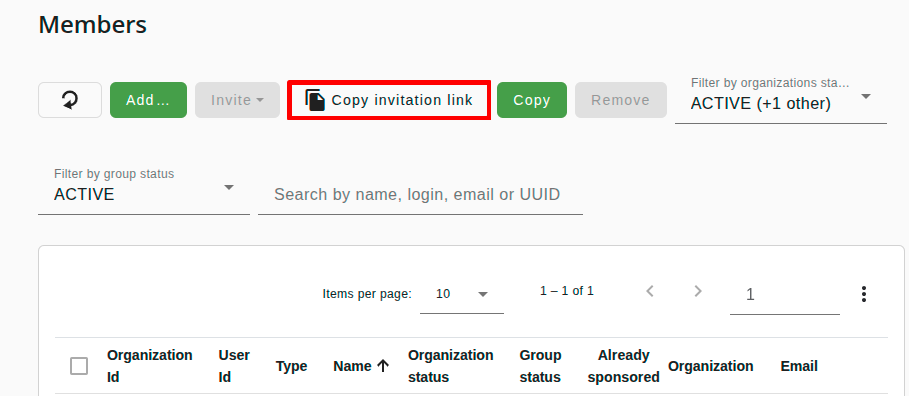
Option B: Add Users Manually
- Open the group and locate the
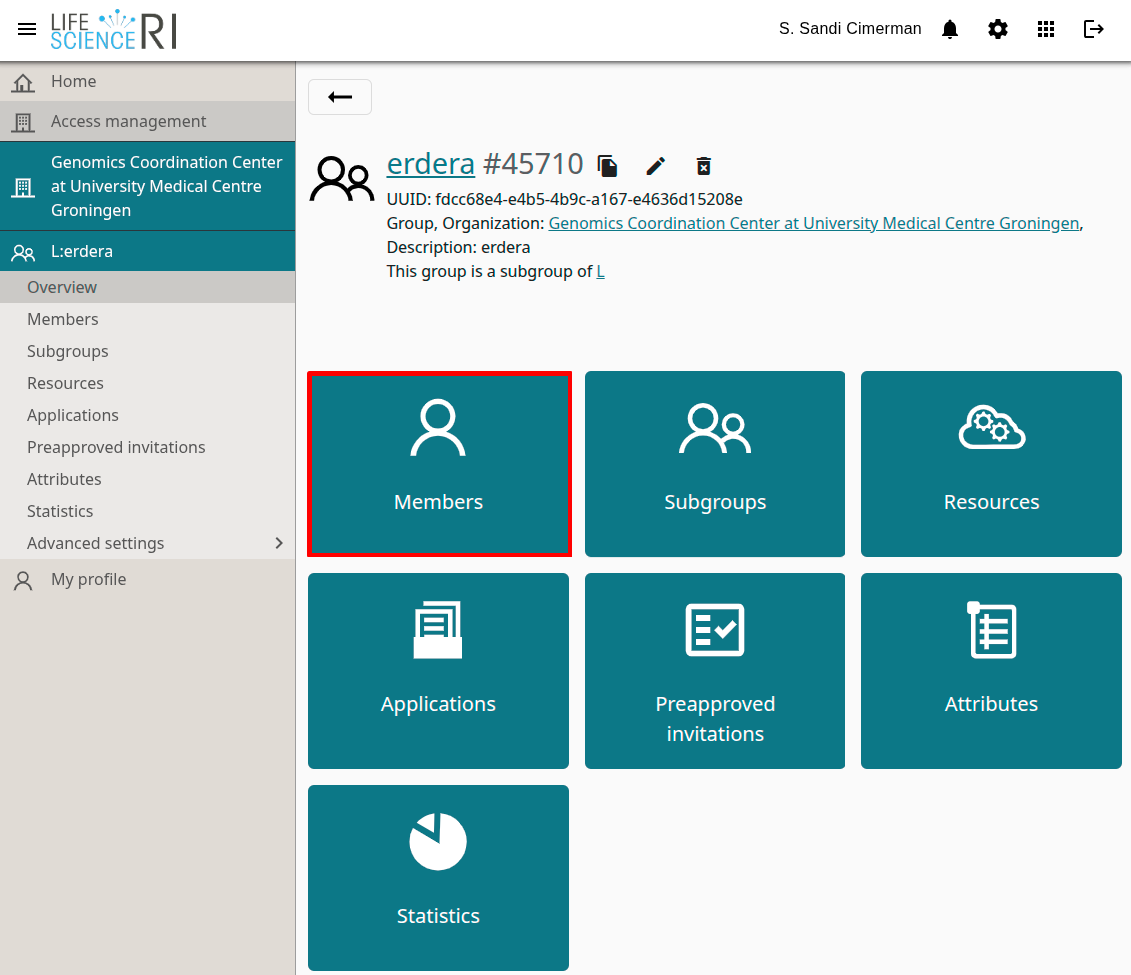
Memberstile (available to group administrators). (screenshot) - Click
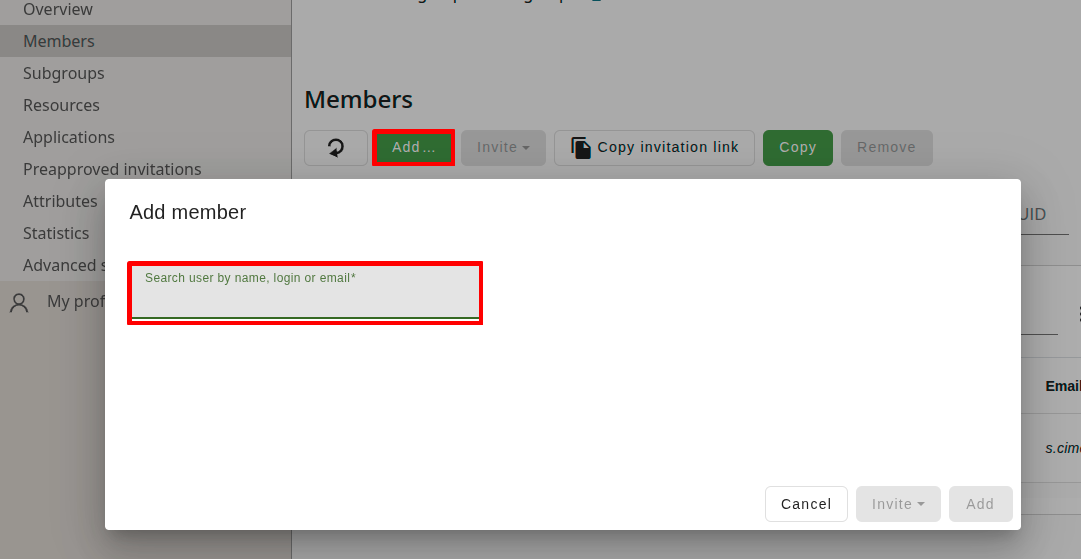
Addand search for the person you wish to include. You can search by name or email address. (screenshot)
3.3. Extending user group access
- Login to the Perun
- Use
Groupstab, and go to the group you wish to manage membership - Select
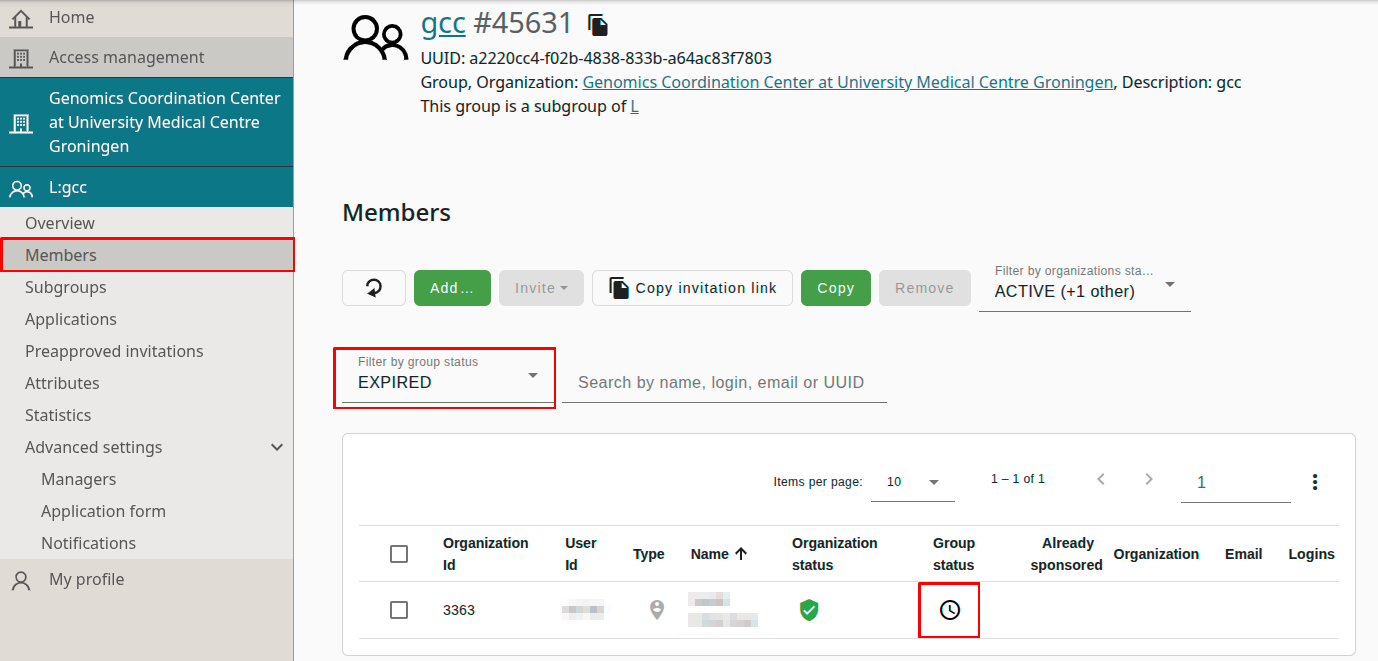
Memberstab (screenshot) - Use drop-down
Filter by group status(default is set toACTIVE) and pickEXPIRED - You will now see only users that have expired
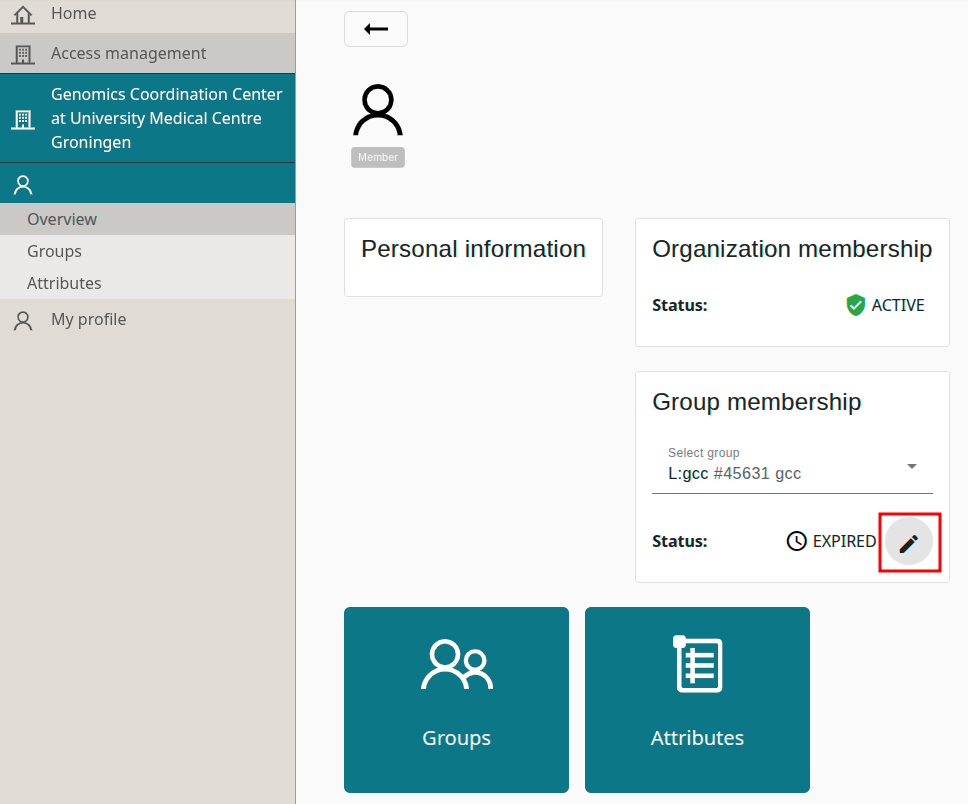
- Click on username and in the new page, under
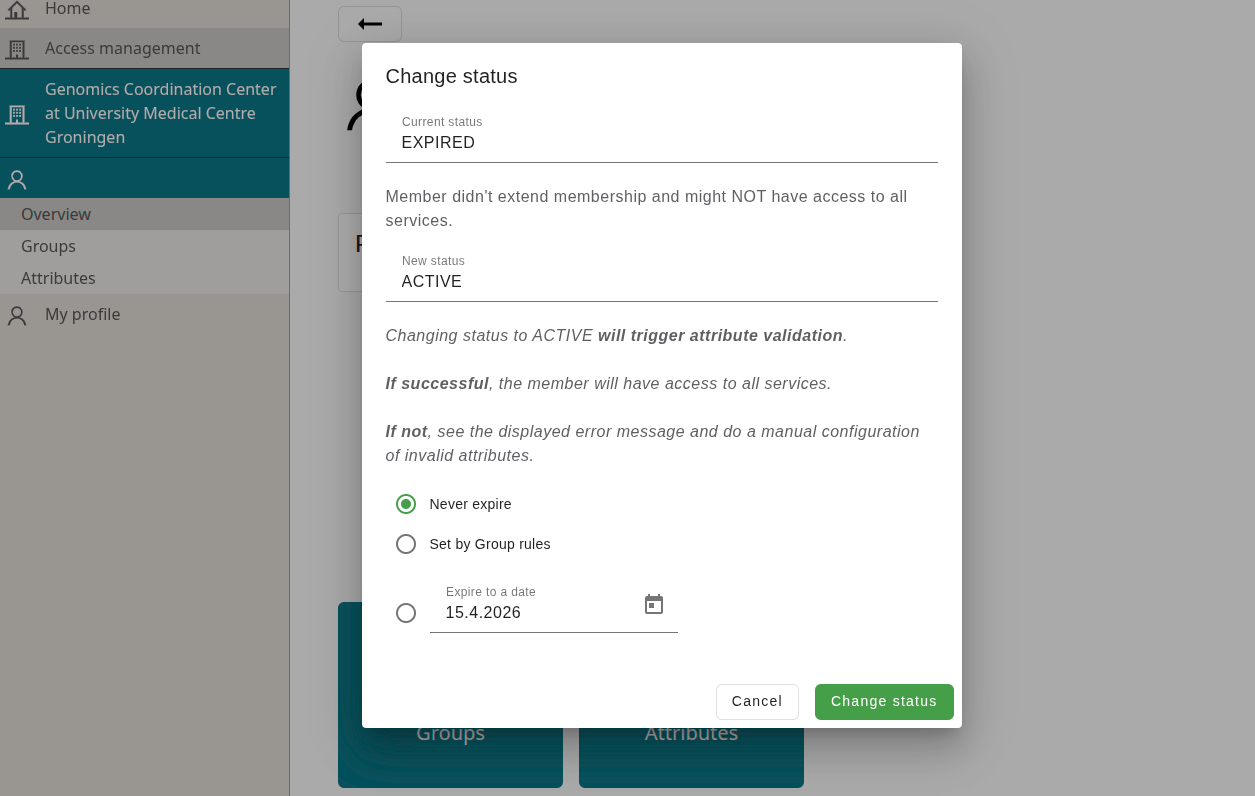
Group membershipnext to theStatus: EXPIREDyou can select edit (pen) icon (screenshot) - Here you select from the three options and click
Change status(screenshot)
3.4. Removing user from a group
- Login to the Perun
- Use
Groupstab, and go to the group you wish to manage membership - Select
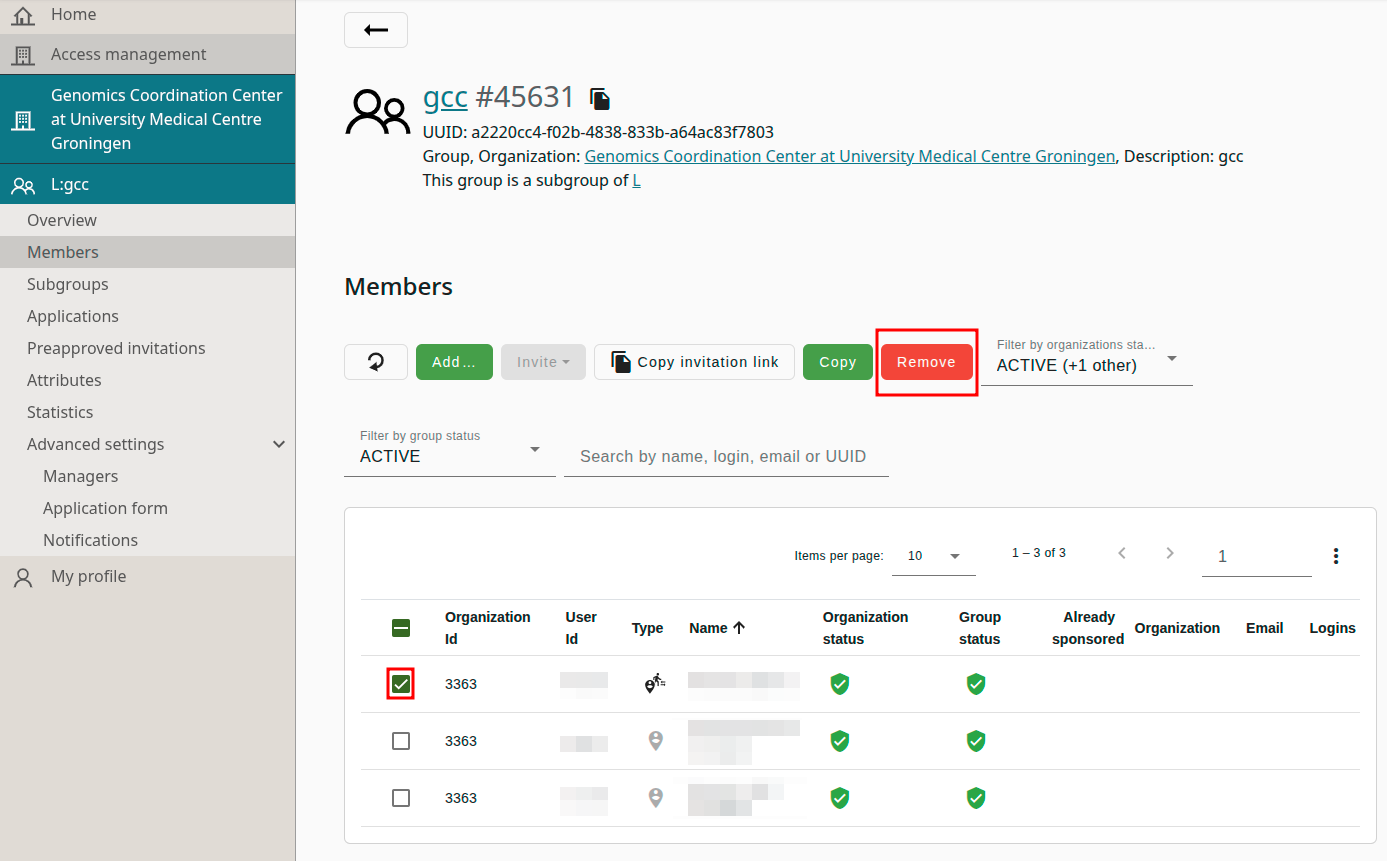
Memberstab (screenshot) - Tick the checkboxes in front of the usernames you wish to remove
- Confirm with
Remove(screenshot)
3.5. Creating subgroups (data managers)
Data managers can create project, release, and hierarchical subgroups. Perun web interface should never used to make new subgroups, instead the command line on the cluster can be used in order to do it properly.
User from the data-manager (-dms) group should run
lsaai_subgroups.sh
The output lists all the groups which you can manage, and also prompts
Would you like to create a new [P]roject, [R]elease versioned dataset, or hierarchical [S]ubgroup?
where [P]roject
- Enter the main group name (from the list shown).
- Enter a project name (2–8 characters, letters/digits/underscore, not
dms). - Press Enter to accept the default membership duration, or type a different number of days (see below).
==> Creates [main group]-prj-[projectname]
[R]elease (dataset + version)
- Enter the main group name.
- Press Enter to accept the default membership duration, or type a different number of days (see below).
- Enter a dataset name (2–12 characters).
- Enter a version name (2–6 characters).
==> Creates [main group]-rel-[dataset]-[version]
Hierarchical [S]ubgroup
- Enter the full parent group name (must be under
[main group]-sub, max 3 levels deep). - Enter a subgroup name (2–8 characters).
- Press Enter to accept the default membership duration, or type a different number of days (see below).
==> Creates the new group directly under the parent you entered.
The membership expiration prompt
Every member added to the subgroup gets an expiration date, set this many days from when they joined (default: 365 days). When that date passes, their membership automatically expires and they lose access to the group — they are not removed from the group definition itself, but need to be renewed or reapply to regain access. This is a safeguard so that access to project/release data doesn't linger indefinitely after someone's involvement ends. You can enter a shorter or longer number of days if 365 doesn't fit the project's expected duration.
Adding a user to a subgroup you created
The script itself does not create individual user accounts. Once a subgroup exists:
- Share the group's membership link (printed at the end of the script) with the person who needs access, or use Option A or B above to add them via Perun.
- The person must log out and log back in to the cluster before access takes effect.
- Allow a few minutes for the change to propagate.